
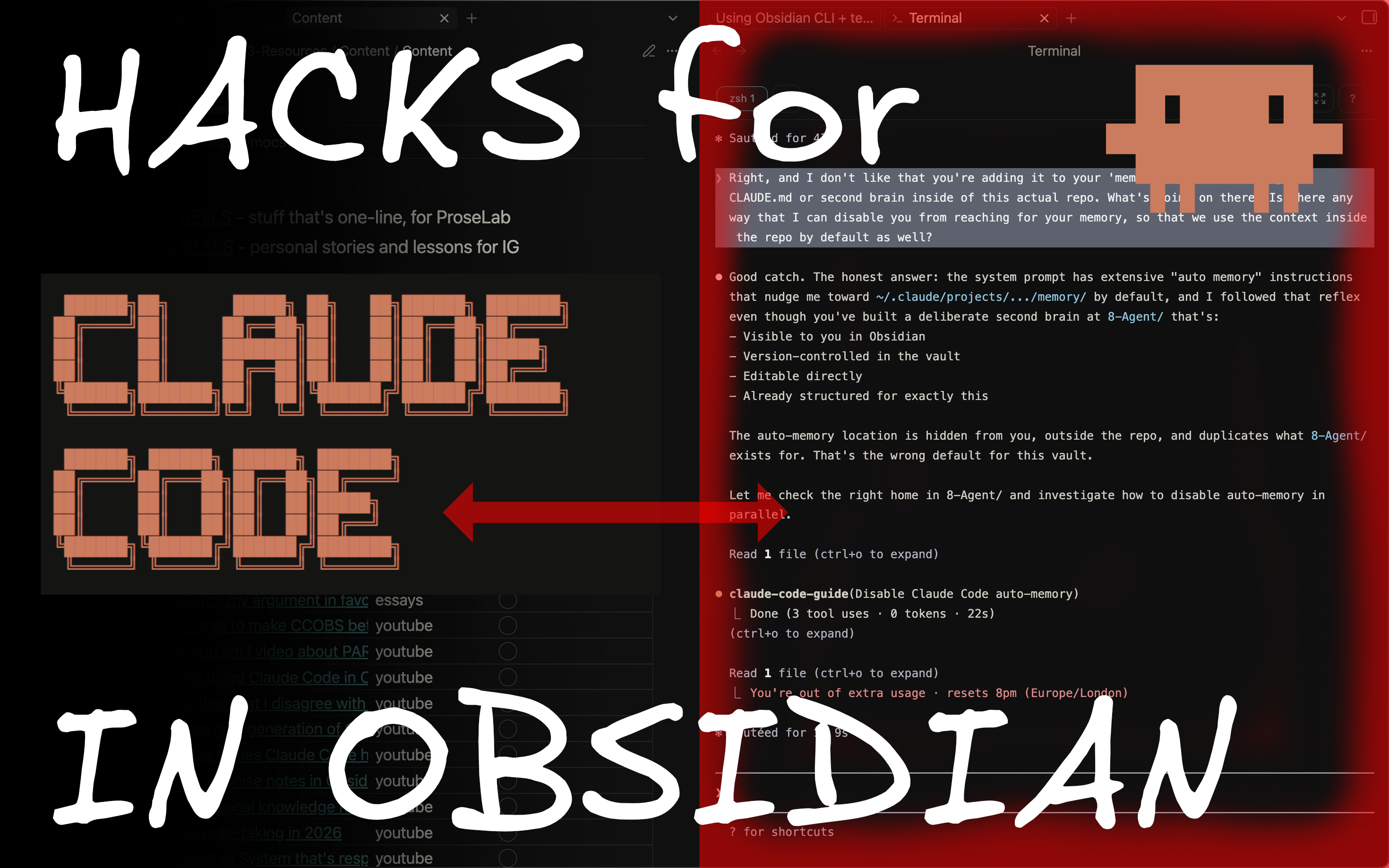
I’ve been obsessed with the combination of Claude Code and Obsidian recently, but the more work I’ve done with them, the more I’ve realised how restrained you need to be in order to use the pairing in a way that’s genuinely functional, and not just prompting for the sake of prompting.
This means choosing not to organise through AI, write through AI and get everything jumbled up in one space, but to be mindful, keep the AI’s notes separate, and capture and write our own ideas in our own words the majority of the time.
However, there are some extensions and tricks that you can use across the board that make the experience more fluid and efficient, so today I wanted to share a quick piece telling you what I’ve learned…
(If you want the broader tour of what Claude Code inside Obsidian actually looks like before diving in, start here)
The Obsidian CLI
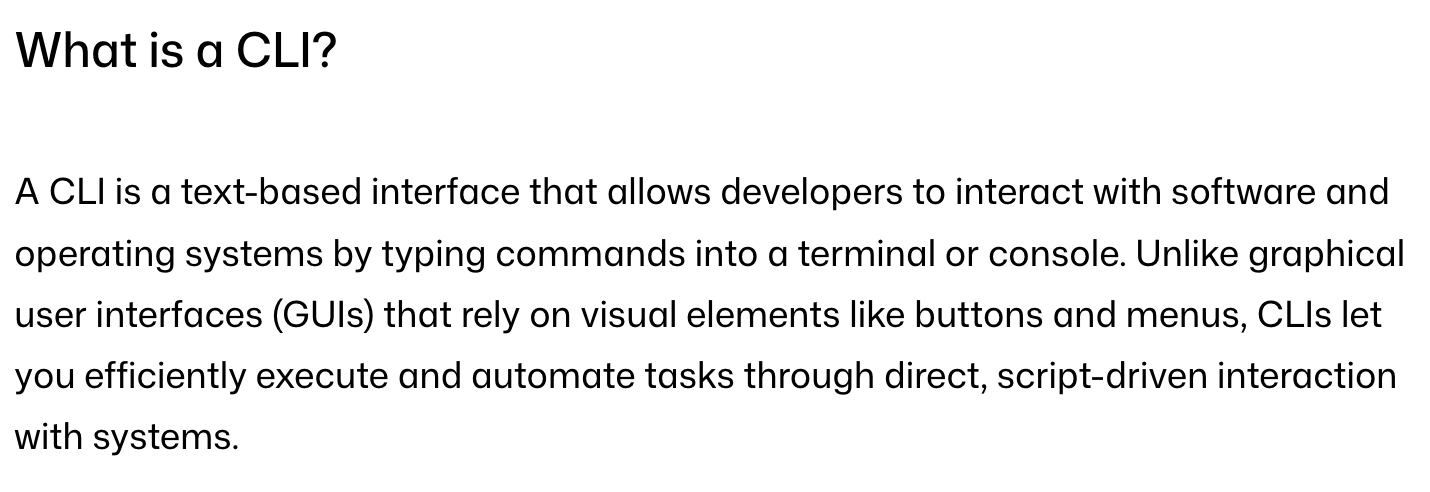
A CLI (command-line interface), as GitHub’s official resources define above, is an interface that allows you (or these days AI as well) to interact with an app from typing into your console.
Unless you’re a technical user of software, you’re probably more used to interacting with your tools through a GUI (graphic user interface) i.e. the visual elements that make up apps such as Obsidian, Notion and the like.
And until the CLI was released, the only way that we had for AI agents like Claude Code to work with Obsidian was through general file-system commands. Things like grep (for searching text based on a regular expression) and mkdir and touch for building new folders and files.
However, Obsidian recently released a command-line interface for itself. This gave our AI agent (or us) a set of command-line commands designed to work natively within Obsidian, streamlining common actions inside our vaults massively…
My agent functions through having its own second brain that it can refer to first, whenever I ask it questions, and then it goes out into the wild of my own vault to bring back more context if it needs…

How I turned it into a personal assistant that lives in my Obsidian vault and learns my workflows…
And it now does this through the CLI, with Obsidian-native commands, saving tokens and getting the job done quicker.
Instead of grep-ing and more, we can now write to the top of our daily notes directly, create new notes with templates and 100 other different things…
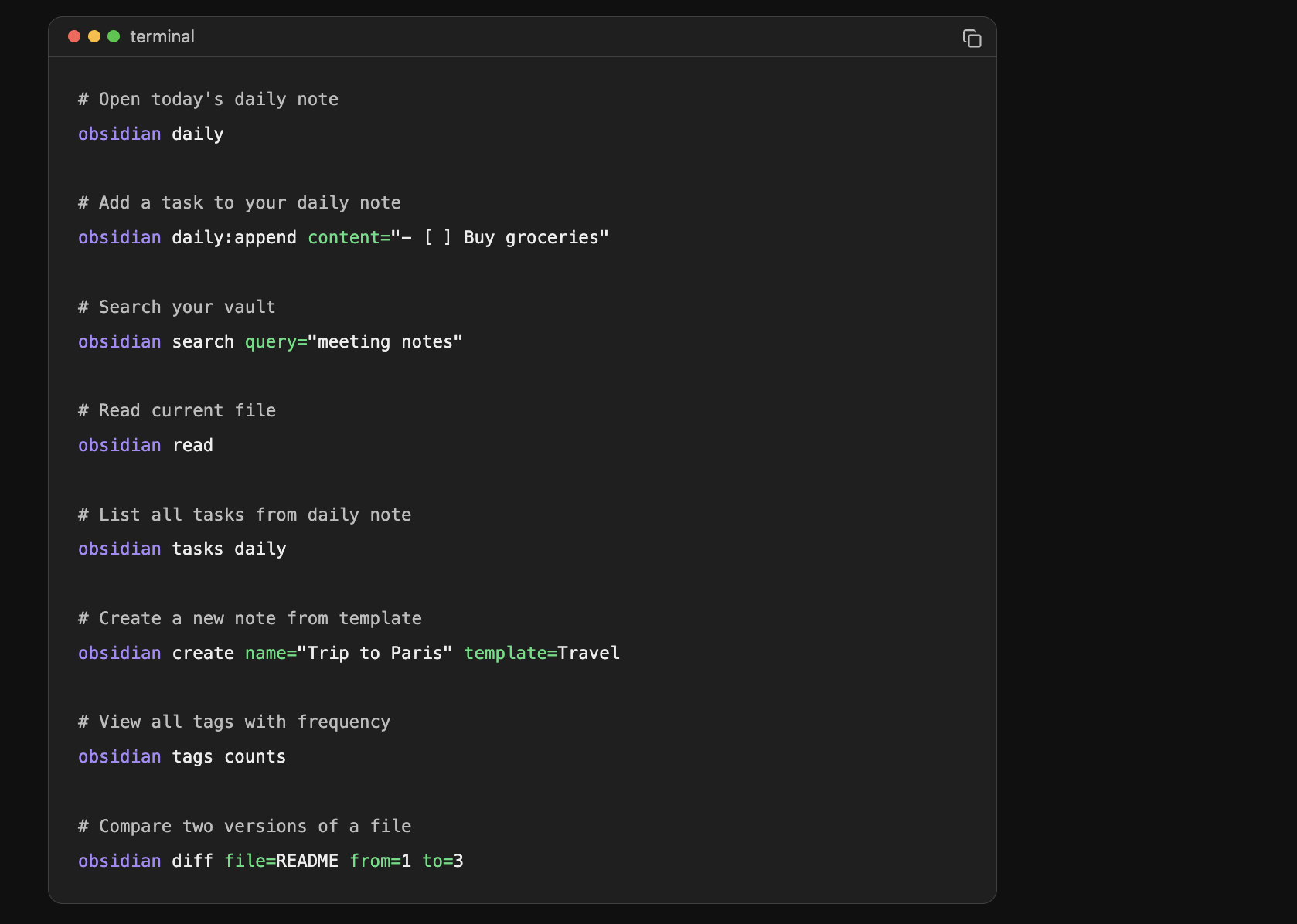
How did I teach this to my agent? Easy - I used the Obsidian web clipper, clipped the Obsidian Help page for the CLI - https://obsidian.md/help/cli (fragment shown above) - into my vault.
Then I mentioned in my base CLAUDE.md file that the agent loads every session that the agent should be CLI-first, and use general file system commands only when obsidian can’t do the desired task.
And now this commanding and talking with Claude is baked into my actual vault as well, using a new plugin. Let me show you…
InternetVin’s terminal plugin
I’ve tried more than a couple of plugins for using the terminal inside of Obsidian, and because I’m not remotely technical, I couldn’t set any of them up to be able to run a simple ‘claude’ command to launch my Claude Code agent.
That was until I found Vin (internetVin online), who’d built a terminal plugin for Obsidian that was deliberately designed for using Claude Code in Obsidian…
https://github.com/internetvin/internetvin-terminal
It’s much better than the others - simply plug it in (using BRAT to install from the repo URL, because it’s not in the Community plugin store yet), open it up and you’re ready to go, without any other setup stages.
I run it split with my note of focus in my Obsidian, and it inherits the fonts from the theme, looking for all the world like it’s an integrated part of the app. I start working without having to context switch from the terminal, to Obsidian and back again…
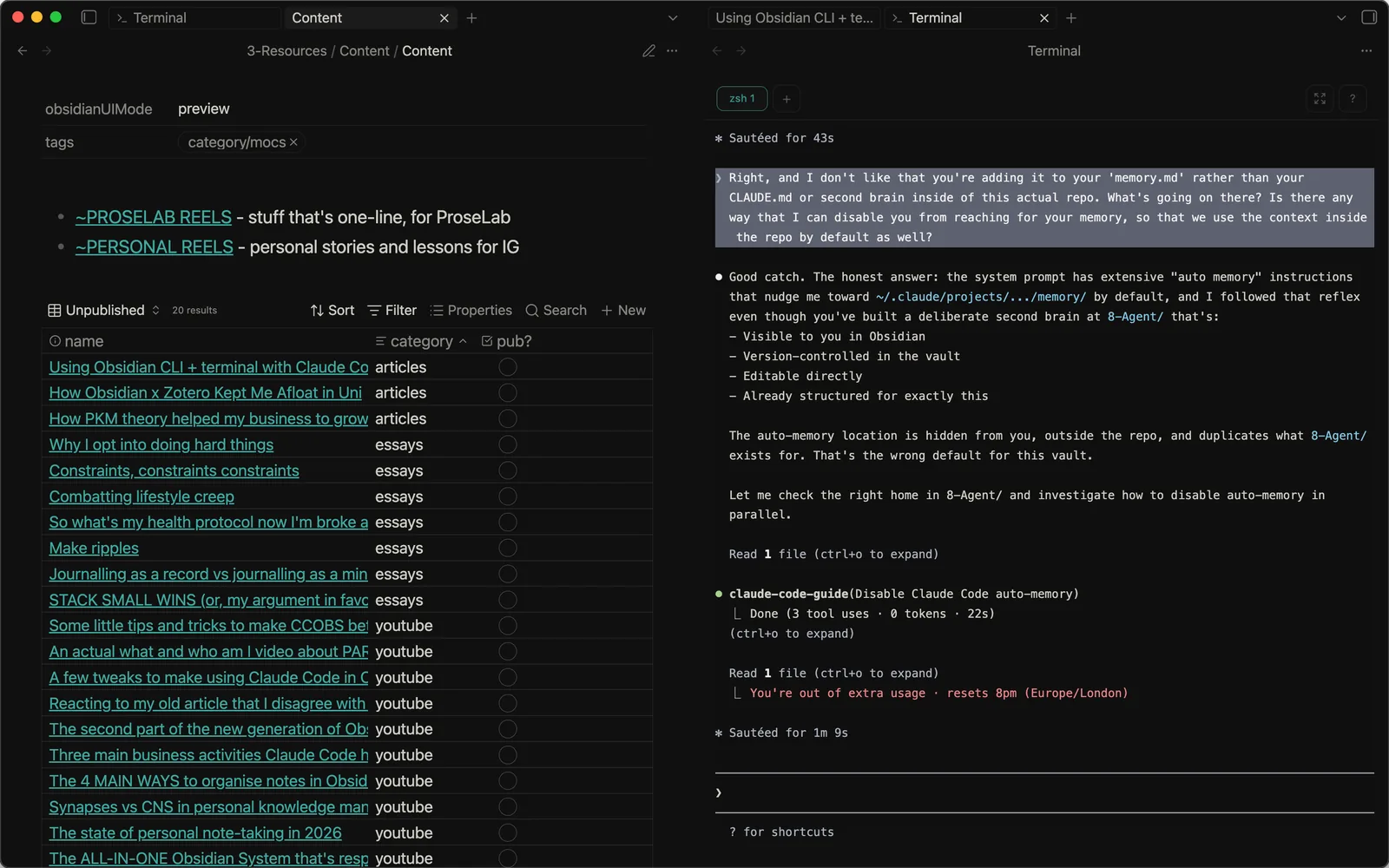
There are also some other features that are baked in to help with working in Obsidian specifically…
When you’re typing you can use ALT/OPT + BACKSPACE to delete whole words, which is default in all text editors, but not in terminals. However, it is in the plugin, helping you craft prompts more naturally.
Additionally, you can use double brackets [[]] to call up files of importance, just as you would using the normal editor in Obsidian.
It’s very useful because, in the terminal, I had a couple of extra steps to do this - shortcut to copy the full file path of the note in question, navigate over to the terminal and paste, then navigate back again once the query had completed.
Conclusion
I still use Claude Code in the terminal in other projects, where I don’t have an Obsidian vault attached to the directory, but when it comes to working with notes in Obsidian, these are the two biggest lever-movers when it comes to asking questions, running skills and working with the knowledge that I’ve gathered over four years of using my vault.
•••
And I’m teaching much more of this in the upcoming PARAZETTEL V5 Obsidian template, which launches on the 1st May.
If you want to be in the loop early for previews, discounts and information, you can sign up at the page below and I’ll be in touch…